
QLA Tools Hub: A Simpler Way to See Your Business
The QLA Tools Hub brings your whole Solex business together in one place. See who has just joined your team, celebrate first enrollments, stay on top of subscriptions and loyalty rewards, and know exactly what it takes for you and every leader on your team to reach the next rank.
We designed it around what matters most: learning, community, and leading with real information and intention. Every chart and report connects you to the people who make your business what it is, and this guide will show you how.
Where to Find It
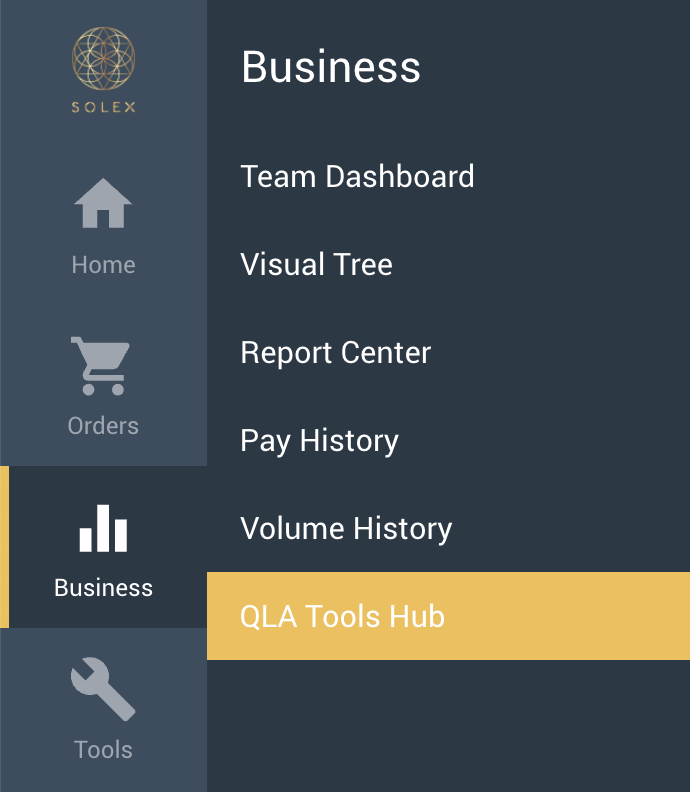
The QLA Tools Hub lives inside your Solex Back Office. Log in as you normally would, and you will land on your back office home page.
In the menu on the left, hover over Business. The Business menu will expand, and the QLA Tools Hub will be one of the options. Click it to open your business hub.
To log in, use the same login information you used to access your back office.
About This Guide
The sections below follow the same order as the left-hand menu in QLA Tools, and almost every page works the same way: when you see a number, click it to see the names and details behind it. At the end, you will find a few ideas for putting each tool to work. This is your business, so please take what fits and make it your own.
IMPORTANT NOTE: The names, numbers and teams in these screenshots are sample data, created to show you how each page works. They aren't real accounts. Once you log in, you'll see your own team, your own numbers and your own progress.
Dashboard: Your Home Page
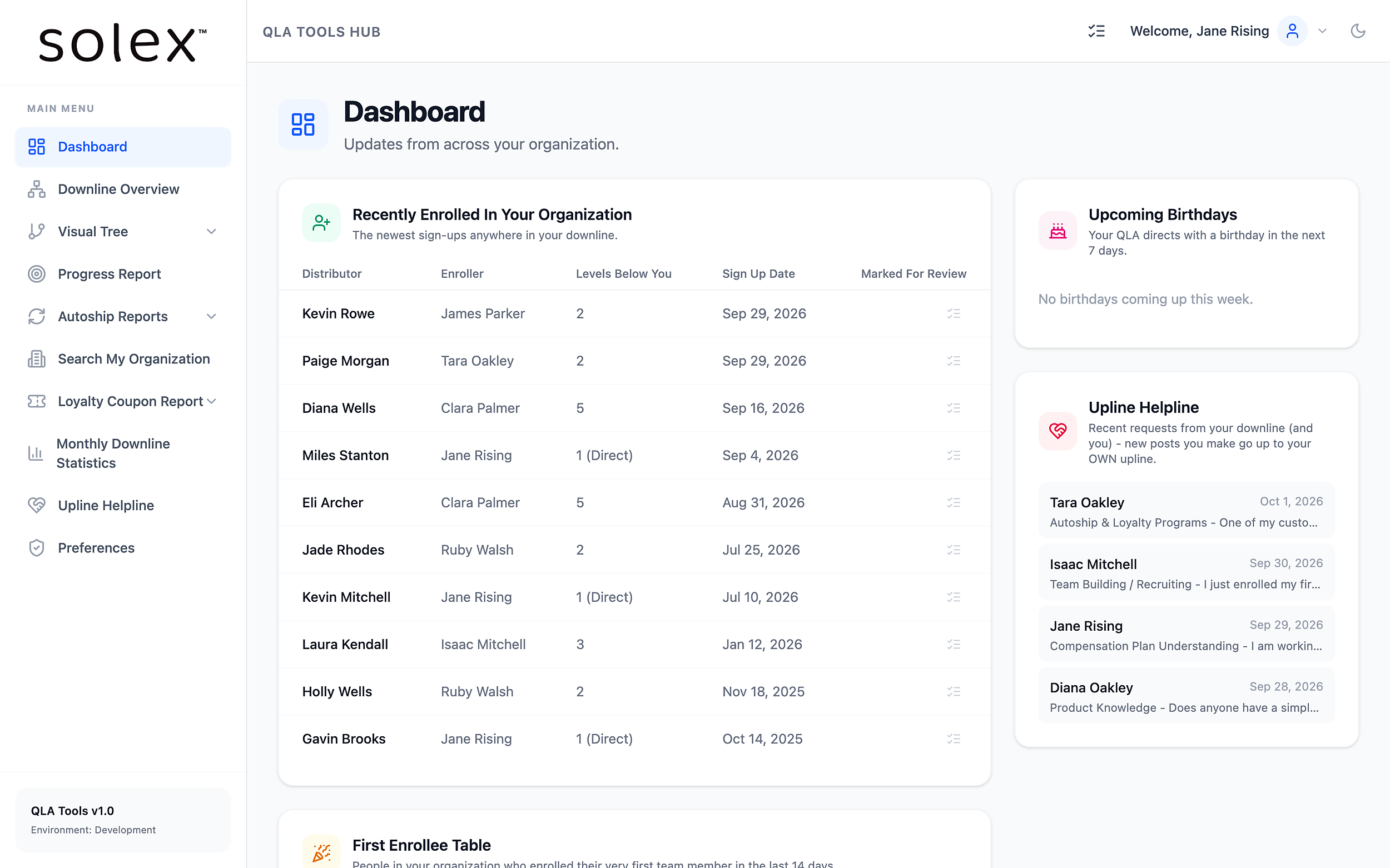
The Dashboard is the first page you see when you log in. Think of it as your daily check-in, with five sections that keep you close to what is happening on your team:
Recently Enrolled In Your Organization: lists the newest sign-ups anywhere in your downline. For each person, you see who enrolled them, how many levels below you they are, and their sign-up date.
Upcoming Birthdays: shows your QLA directs with a birthday in the next 7 days.
First Enrollee Table: shows people who enrolled their very first team member in the last 14 days. A first enrollment is a big moment, and a quick note of congratulations goes a long way.
Upline Helpline: shows the five most recent requests for help from your team. Click one to read it.
Lead Generation Tracker: is your own private prospect list (more on that below).
Mark for Review and the Review List
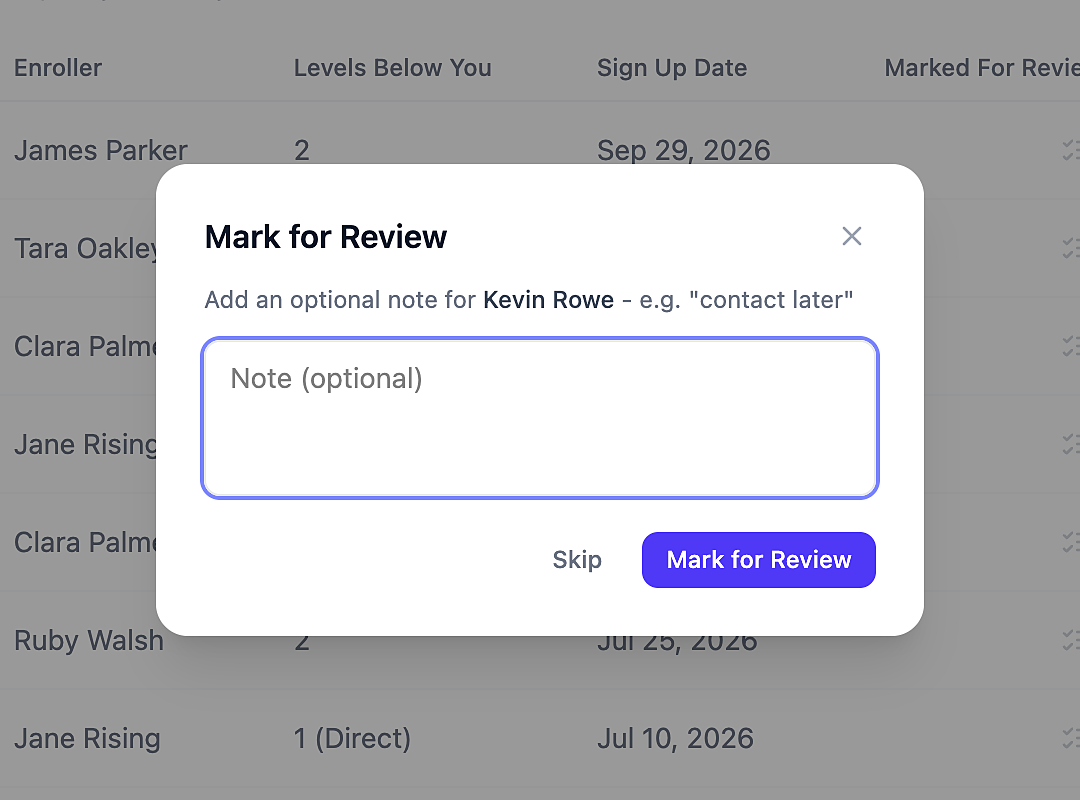
Every row in the Recently Enrolled in Your Organization section has a small checklist icon on the right side. That is the Mark for Review button. Click it and add a short note to yourself, such as "Welcome call this week," or simply click Skip.
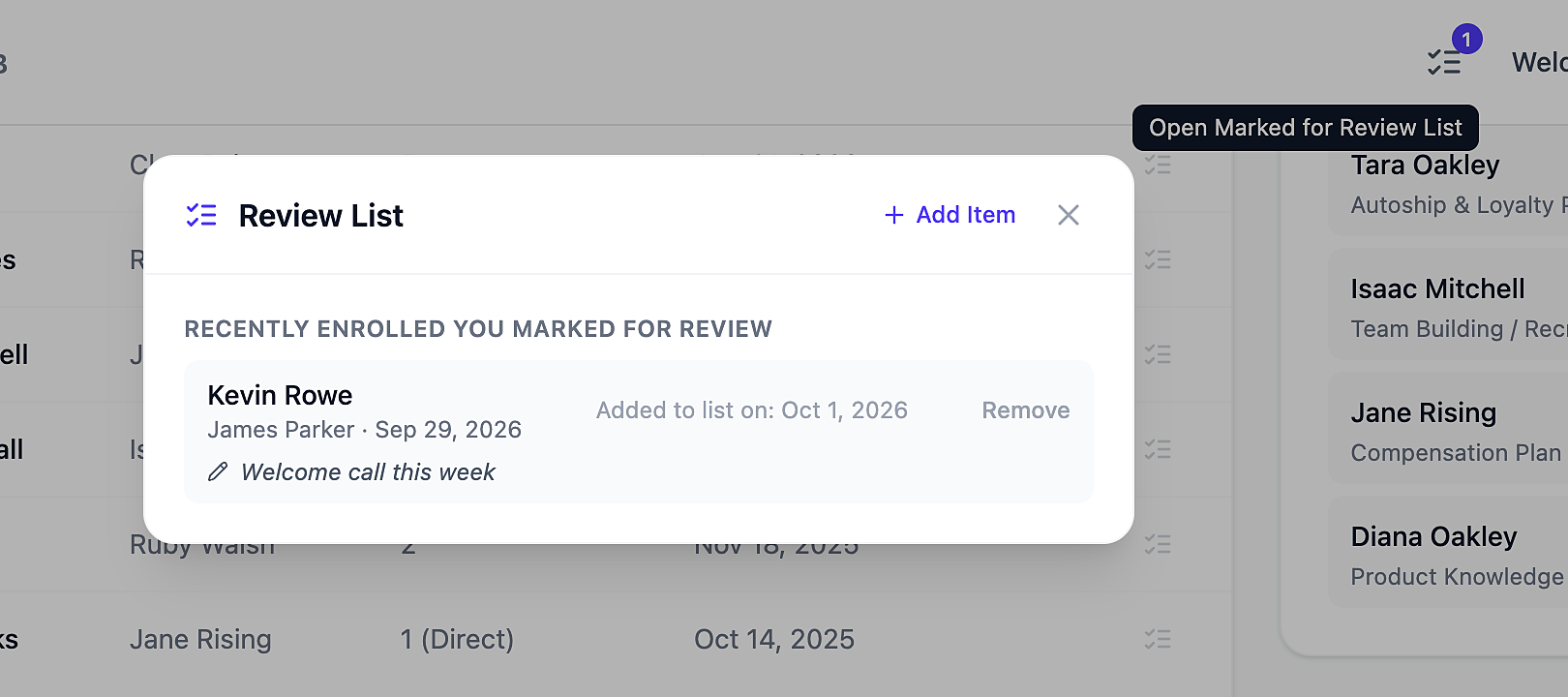
Everything you mark goes to your Review List. Open it any time from the checklist icon at the top of every page. The number on the icon shows how many items are waiting. On the list, you can:
Click any name to open their details;
Add or edit a note;
Remove someone when you are done;
Use + Add Item for anything else on your to-do list, with ready-made categories like Rank Advancement Follow-Up, Subscription Reactivation, Loyalty Coupon Reminder, and Payment Declined Follow-Up.
Lead Generation Tracker
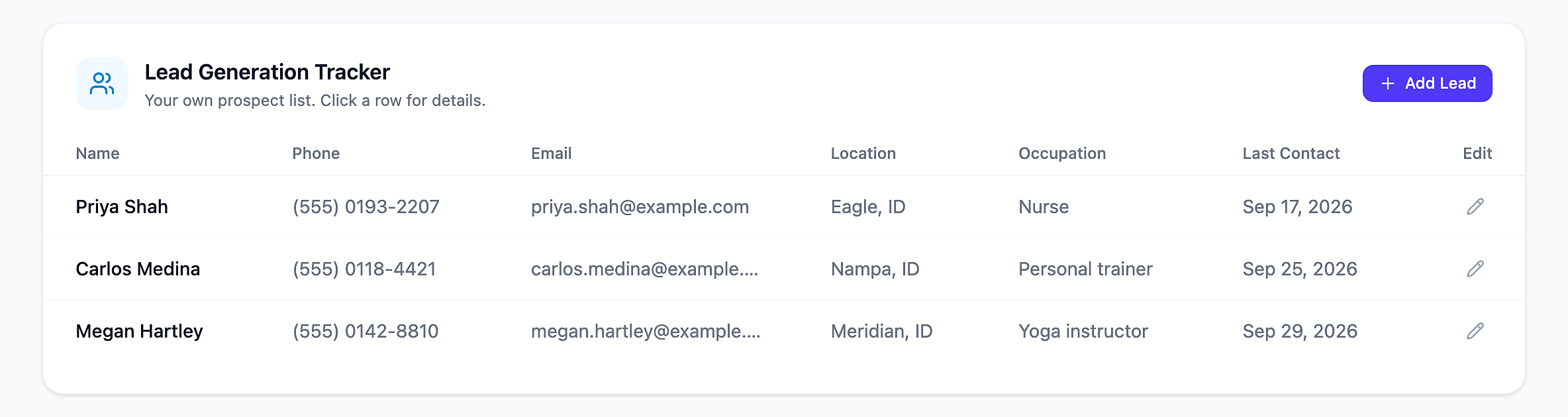
The tracker is your private prospect list, a single place for everyone you are sharing Solex with. Each lead has a name, phone, email, location, occupation, and the date you last connected. It is visible only to you.
Click Add Lead to add someone new. Once someone is on your list, click their name to open their details. From there, you can:
Update Last Contact with one click after a conversation;
Schedule Follow-Up on a date you choose.
Log interaction events such as phone calls, texts, or Zoom meetings, with notes, to build a timeline of every conversation.
Downline Overview
Next in the left-hand menu is Downline Overview. It shows your whole team on one page, in three sections: Trends, Overview, and Loyalty Coupon Usage.
This is where clicking really pays off. Click a bar or a day on any chart, and a window opens showing who is behind that number. Every name in that window is clickable too, so you can learn more about anyone on your team without leaving the page.
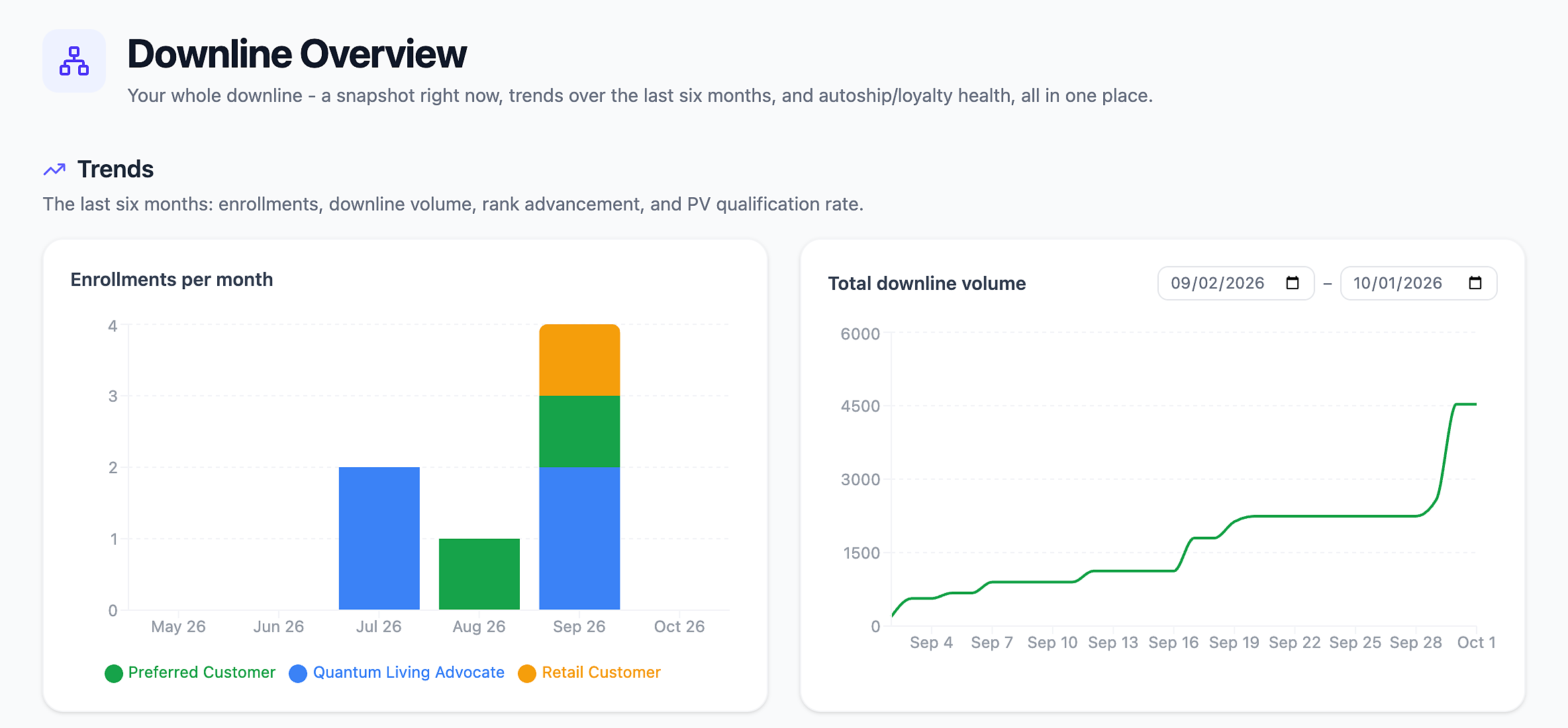
Enrollments per month: This shows new enrollments for the last six months, split into QLAs, Preferred Customers, and Retail Customers. Hovering over a bar gives you the totals and percentages, and clicking it introduces you to everyone who joined that month.
Total downline volume shows your team's group volume day by day. Choose any date range with the calendar options.
Rank advancement over time shows how many people on your team are at each rank, day by day. There are two versions: one for your whole organization and one just for your directs. Turn on Show Data For Same Day Last Month, and hovering over a day compares it with the same day last month.
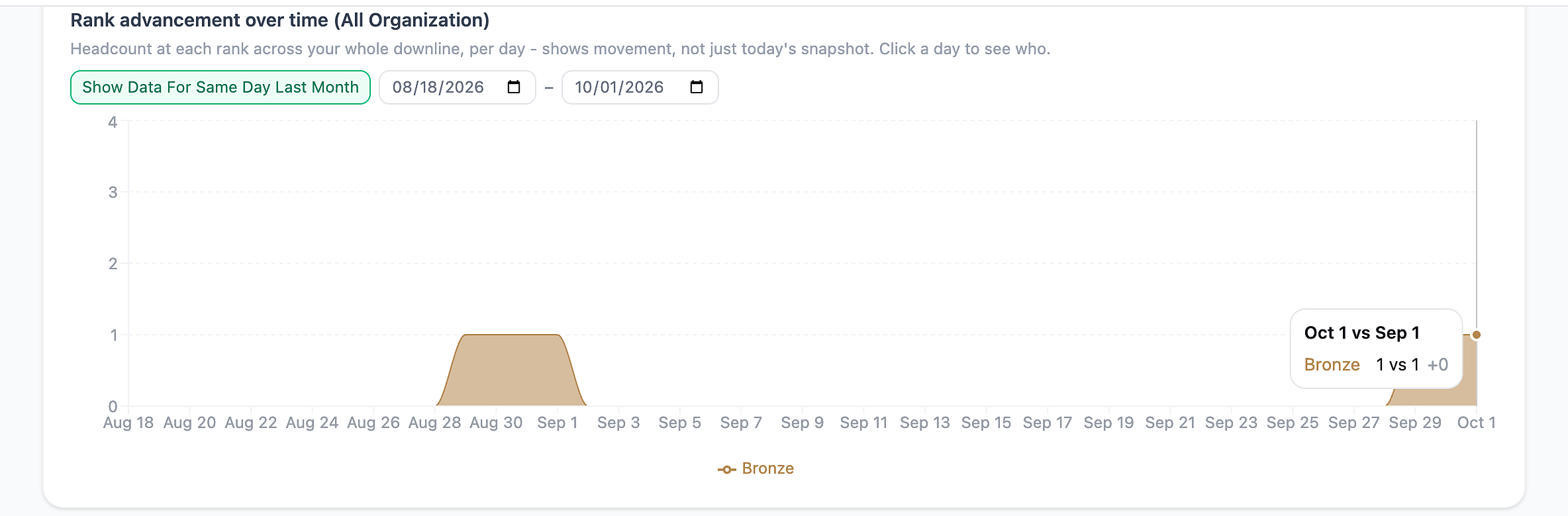
Use the date fields above the chart to choose the range you want to see, then click any day within it to see who held each rank on that date. With the comparison turned on, last month and this month appear side by side, with arrows showing who moved up or down.
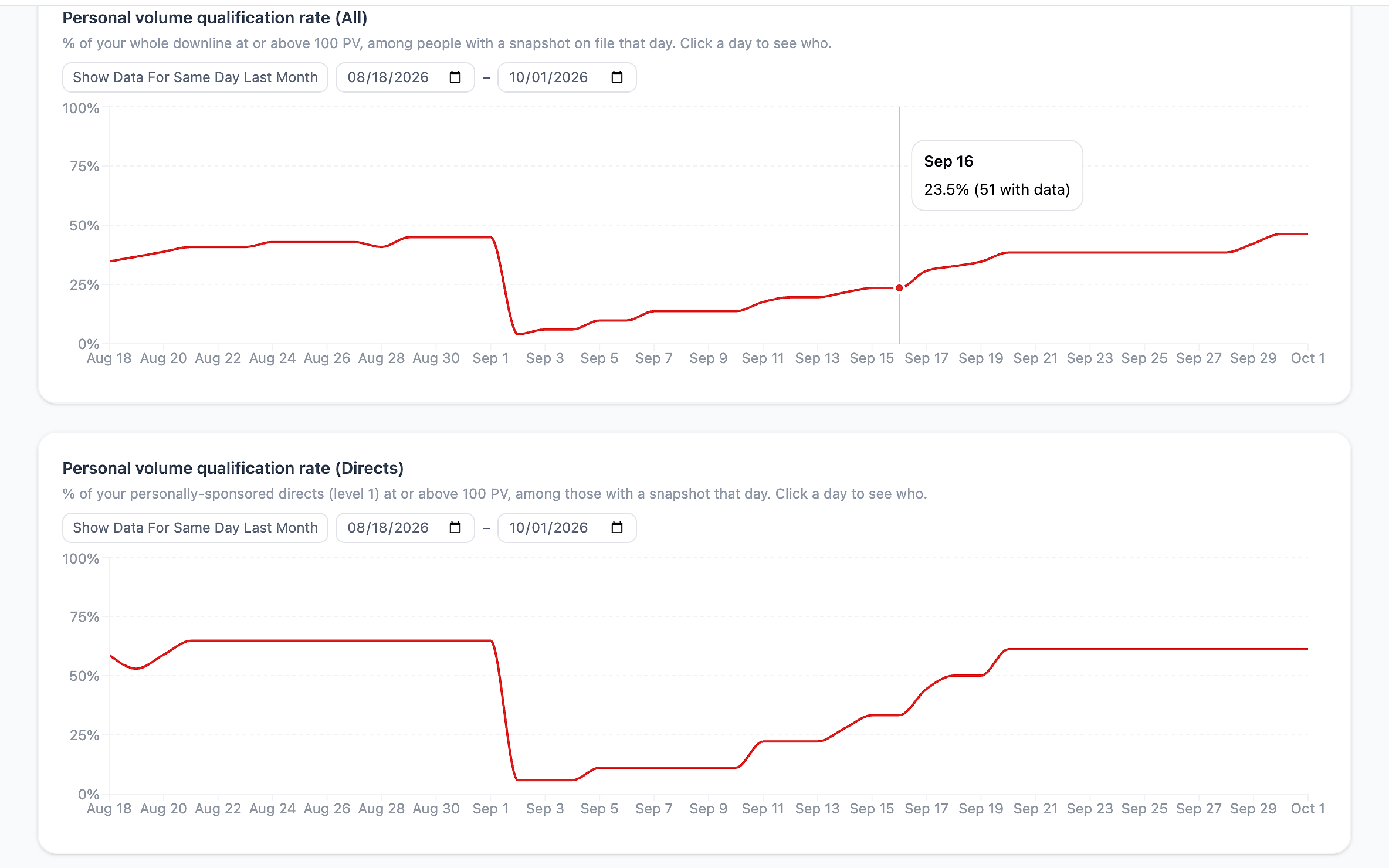
Personal volume qualification rate shows what percentage of your team, and of your directs, are at or above 100 PV, day by day through the month.
Select any date to see exactly to see who’s Qualifying and who's Not qualifying that day. You can filter by either, and the same-day-last-month comparison works here too.
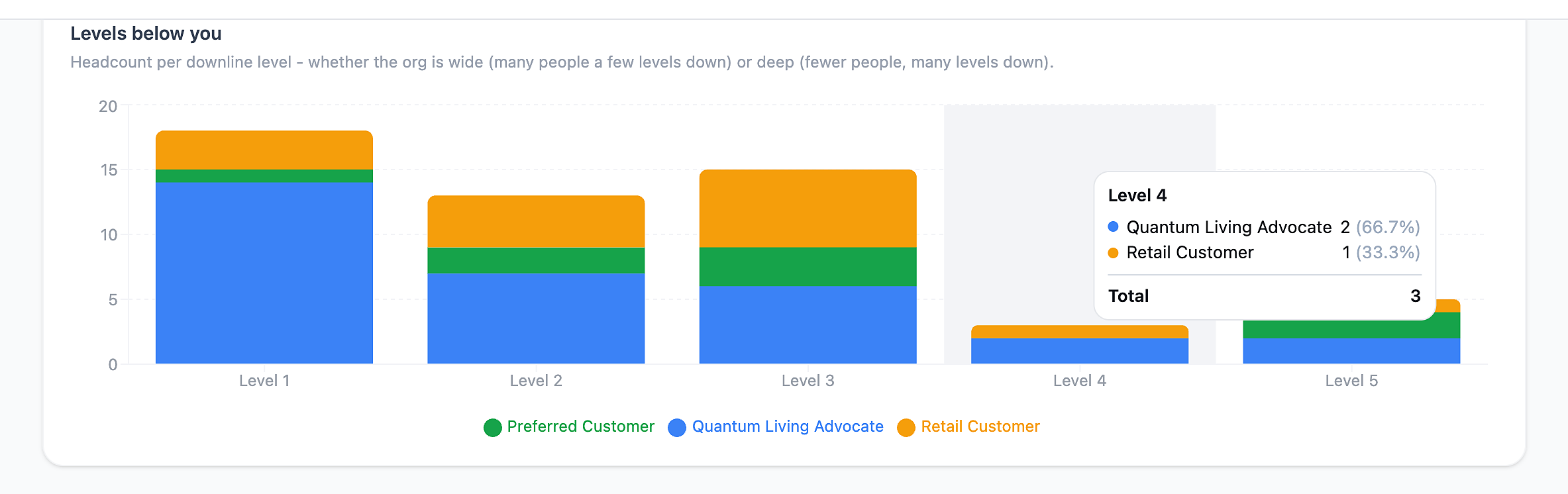
Levels below you shows how many people sit on each level of your team, by customer type. It tells you whether your organization is wide (many people a few levels down) or deep (fewer people, many levels down). Click a bar to see everyone on that level, with their sponsor.
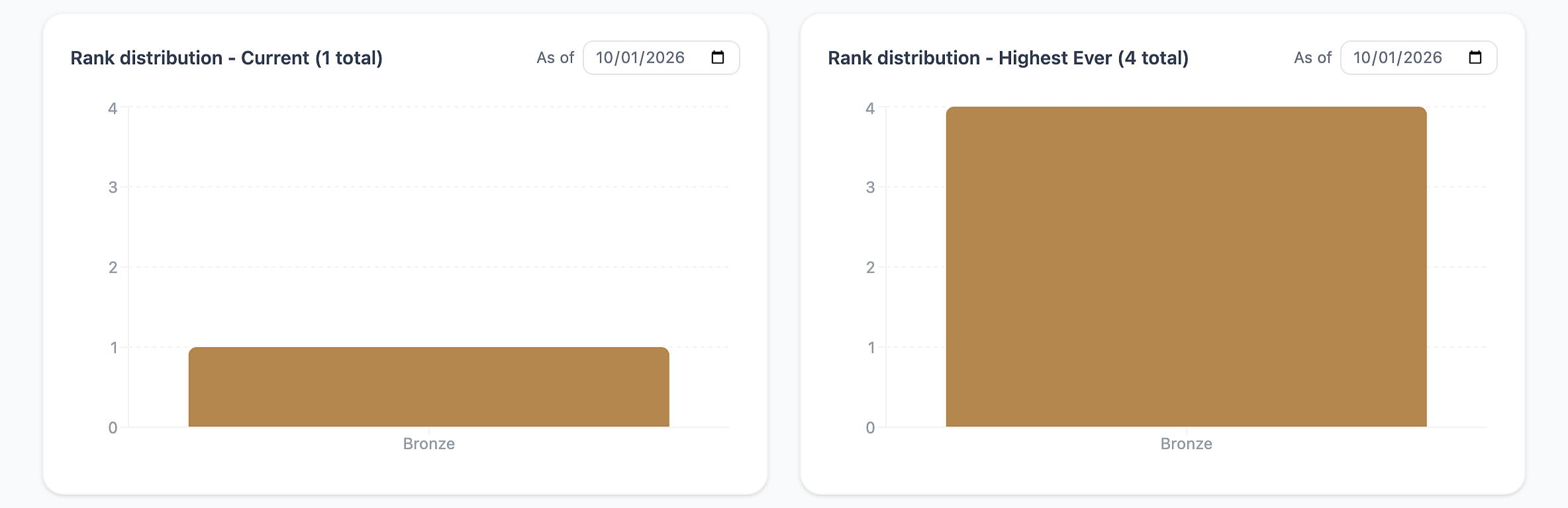
Rank distribution has two charts: Current ranks and Highest Ever ranks. Use the As of date to look back at any earlier day. Click a bar to see everyone at that rank.
Customer type mix, shows your team's balance of QLAs, Preferred Customers, and Retail Customers.
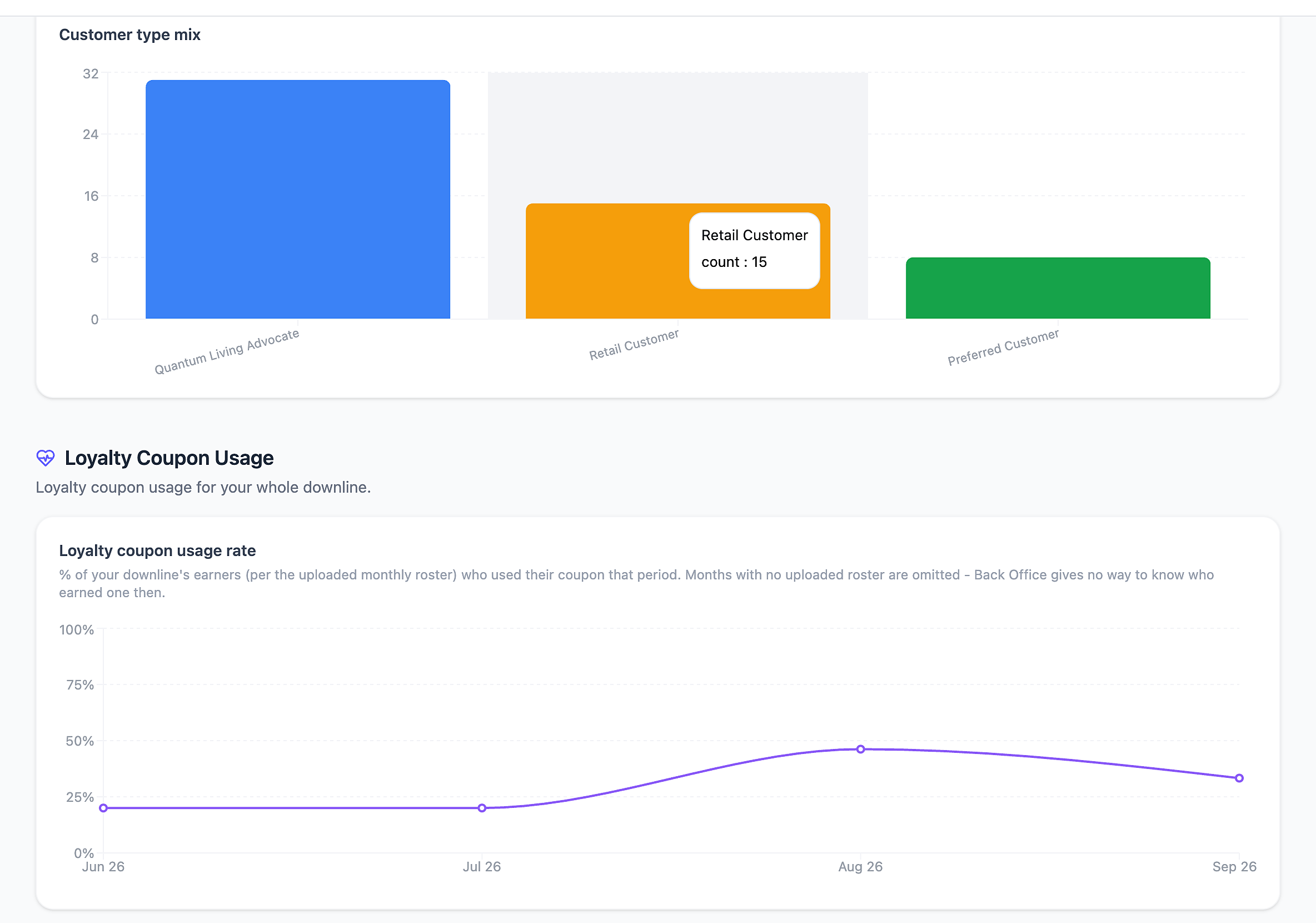
The Loyalty coupon usage rate chart tracks, month by month, how many of the people on your team who earned a loyalty coupon went on to use it. A higher percentage means fewer rewards are going unused.
Visual Tree
The Visual Tree draws your organization as an interactive chart you can explore. There are three views in the Visual Tree menu:
All Organization shows your whole downline, already expanded.
Current Rank (Directs) shows only the people at Bronze or higher, colored by their current rank. Everyone else is skipped, so you can see your leadership at a glance. Click a leader's + badge to open up their branch.
Highest Rank (All) colors everyone by the highest rank they have ever reached. A green Current Rank badge means they are still at their peak; a gray Former Rank badge means they have dropped from it.
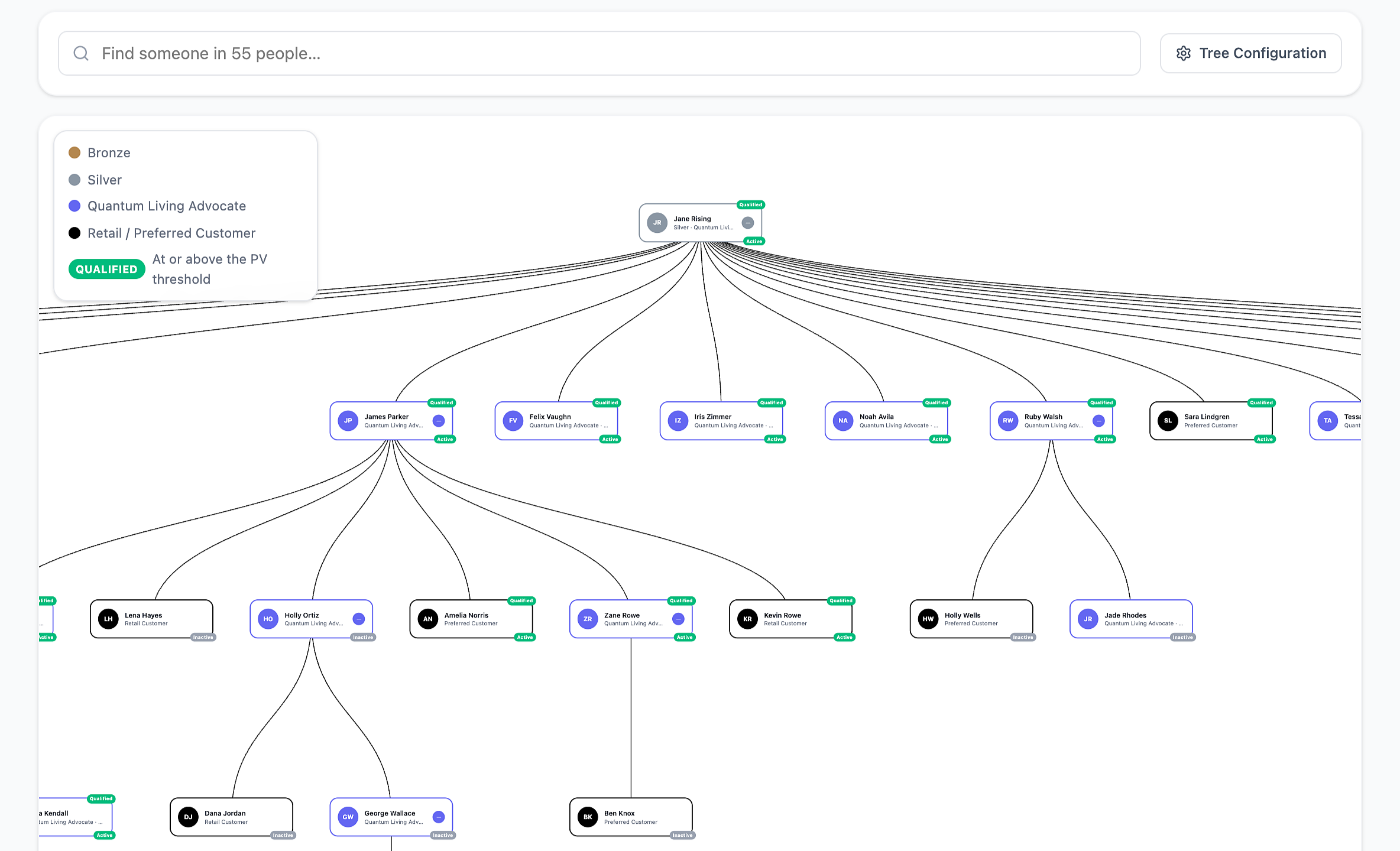
Everything you can do on the tree:
Search: Type any name in Find someone. The tree jumps straight to that person and opens their branch if it was closed.
Tree Configuration: filter what is highlighted by Customer type and Rank. Everyone else fades into the background.
Click a name to open that person's full details
Click a card or its +/– badge to open or close that branch. The tree re-centers on it.
Hover over a connecting line to see who connects to whom, with their ranks. Click the line to jump to that person.
Move around freely: drag to pan, scroll to zoom.
As of date (Current and Highest Rank views): see your tree as it looked on an earlier day.
Badges on every card show Active or Inactive, and Qualified when someone is at or above the PV threshold.
Important note: The Visual Tree works only on desktop Chrome, Firefox and Edge browsers.
Subscription Reports
Active Subscriptions
Every active subscription on your team, color-coded so the ones that need attention are easy to find:
Green: processed in the last 30 days
Red: payment declined on the last attempt
Yellow: replaced a cancellation from the same month
The default sort places declined payments first, so the rows that matter most are always at the top. Click the arrow on any row to see the products on that subscription.
Make the report yours:
Sort by declined payments first, successful payments first, next process date or level.
From / To dates narrow the list to a date range.
Report Configuration lets you choose which columns you see. Switch Sort Mode to Advanced to sort by clicking column headers, including several columns at once.
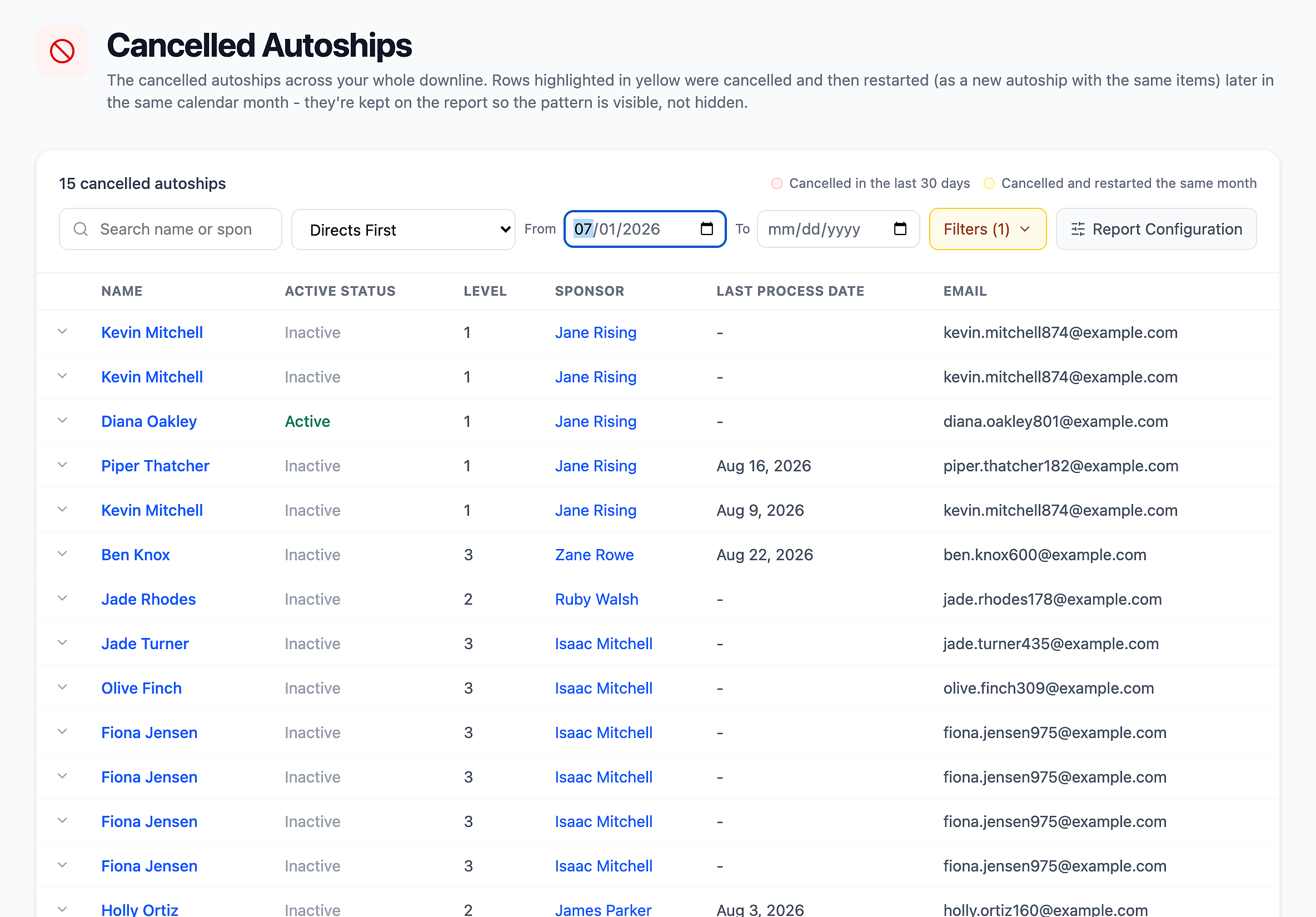
Cancelled Subscriptions
Every cancelled subscription on your team, with each person's sponsor beside it. Recent cancellations are highlighted in red, and anyone who cancelled and then restarted in the same month is highlighted in yellow, so the full picture is clear. Sort by Recently Cancelled First, Directs First or level.
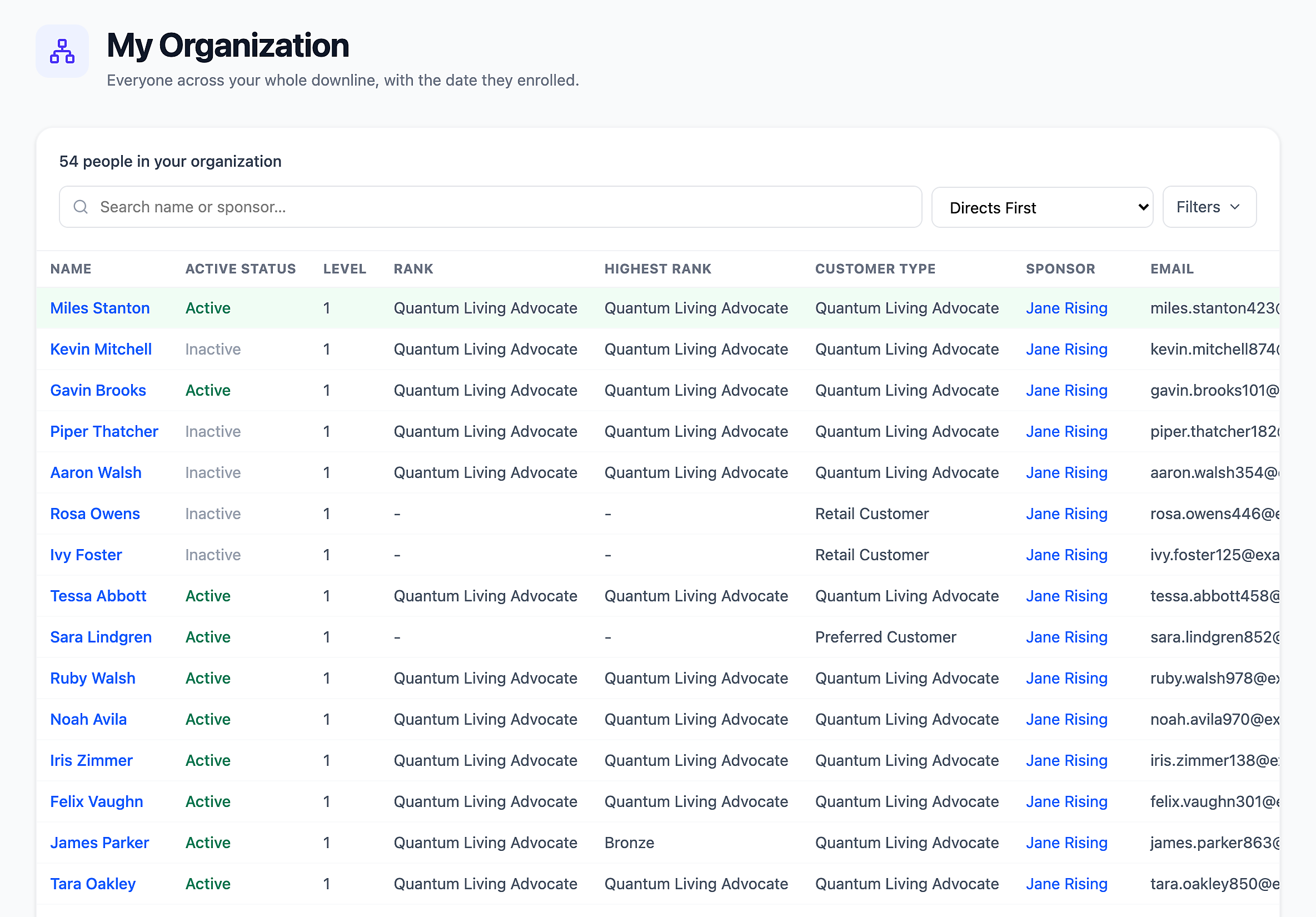
Search My Organization
This feature provides a list of everyone in your downline: Active Status, level, rank, highest rank, customer type, sponsor, email, and enrollment date. People who enrolled in the last 30 days are highlighted in green.
Filters narrow the list by Current Rank, Highest Rank, Customer Type, Active Status, and Levels Below Me.
Loyalty Coupon Report
The Solex Loyalty Program rewards customers with a 30% off coupon after three consecutive automatic orders. The coupon expires 30 days after it is issued, so timing matters. These two charts help make sure no one on your team misses theirs.
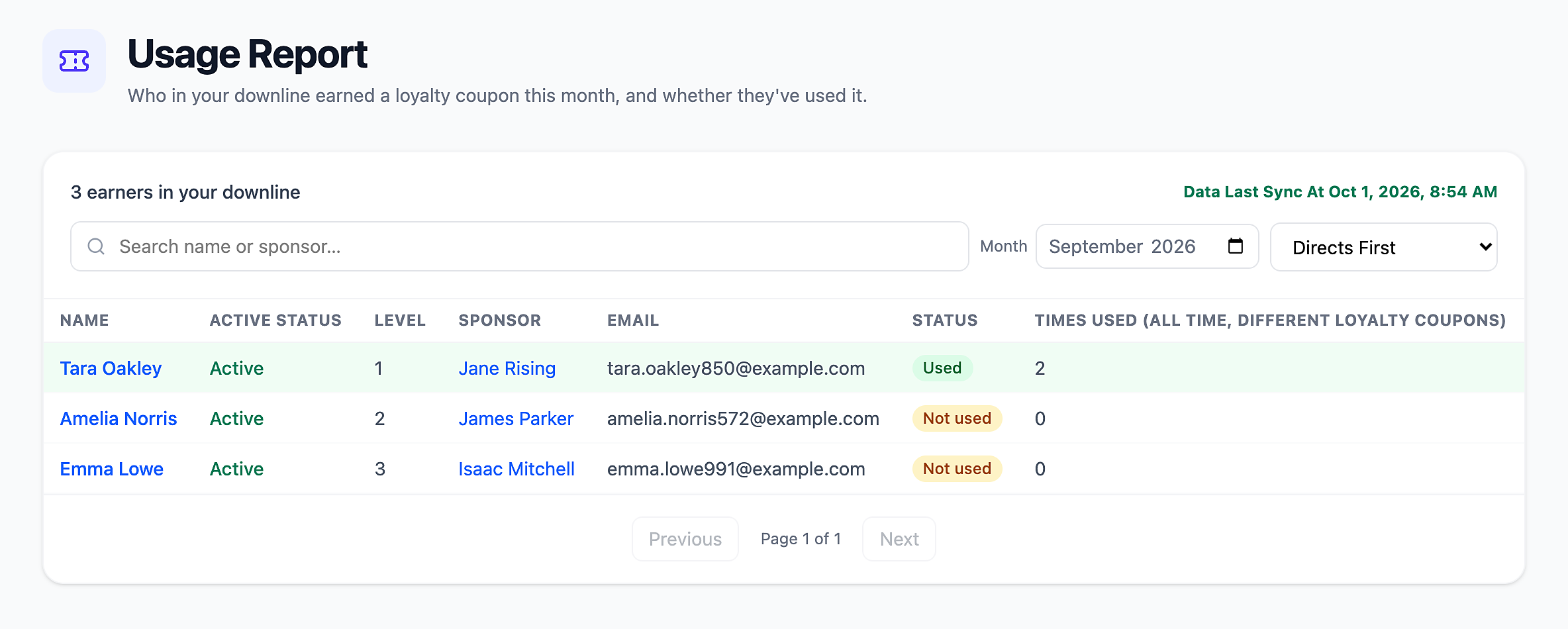
Usage Report
See who on your team earned a loyalty coupon in any month (use the Month filter), whether they have Used it or it is Not used, and how many different loyalty coupons they have used over time. The green Data Last Sync At note tells you how fresh the information is. Sort by Not Used First to build your reminder list.
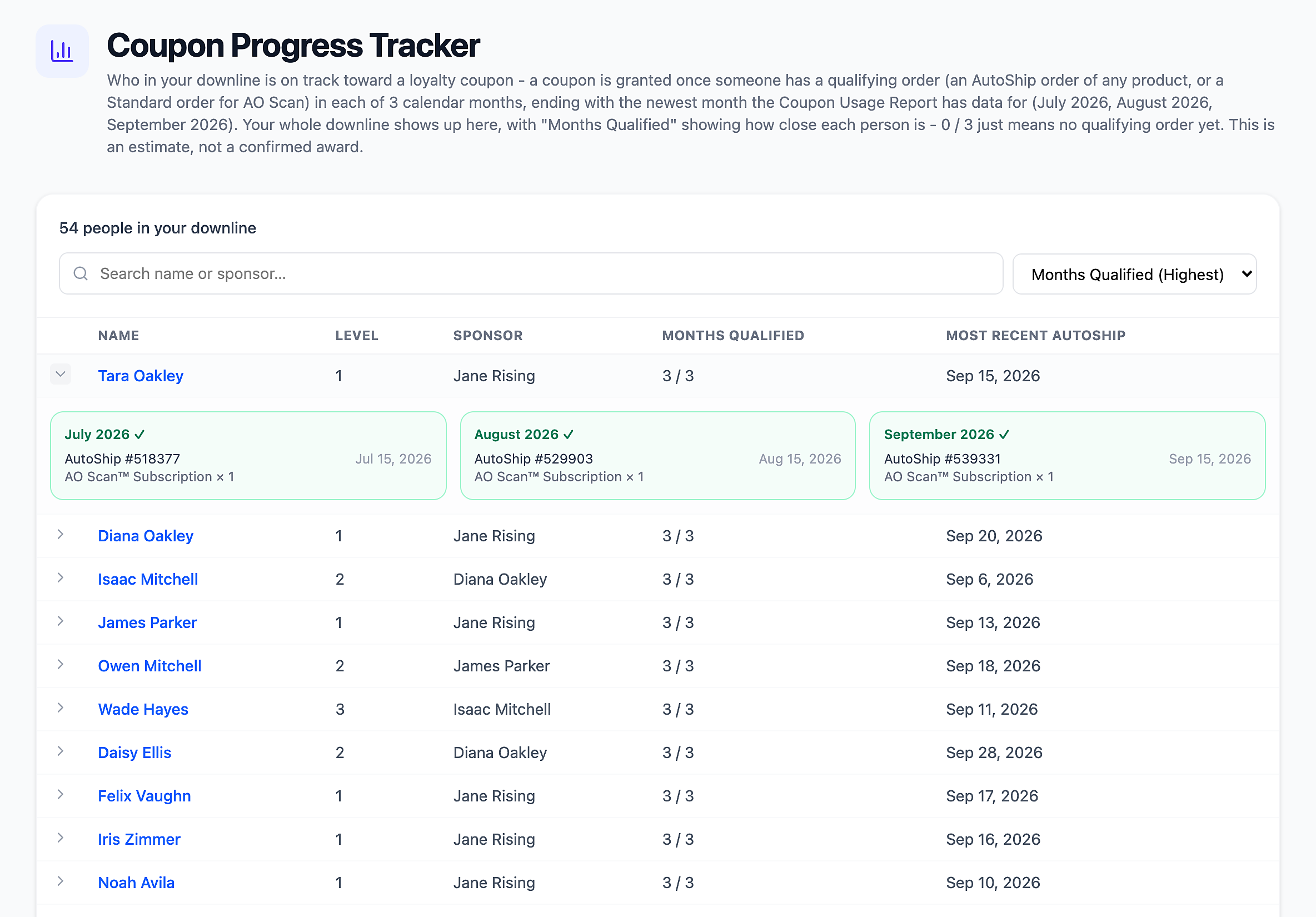
Coupon Progress Tracker
Who is on track to earn a coupon? Months Qualified shows each person's progress, from 0/3 up to 3/3, along with their most recent subscription. Click the arrow on any row to see each of the three months, with a check mark for every month that has a qualifying order, and the order details.
Important note: This is an estimate based on qualifying orders, not a confirmed award.
Monthly Downline Statistics
Search your whole downline's rank and volume for any month you choose: rank, highest rank, customer type, sponsor, Personal SV and Downline SV. Sort by volume, rank, Below PV, and more.
Scroll right to see how many people each person has at each rank, both directs and total, from Bronze through Pearl.
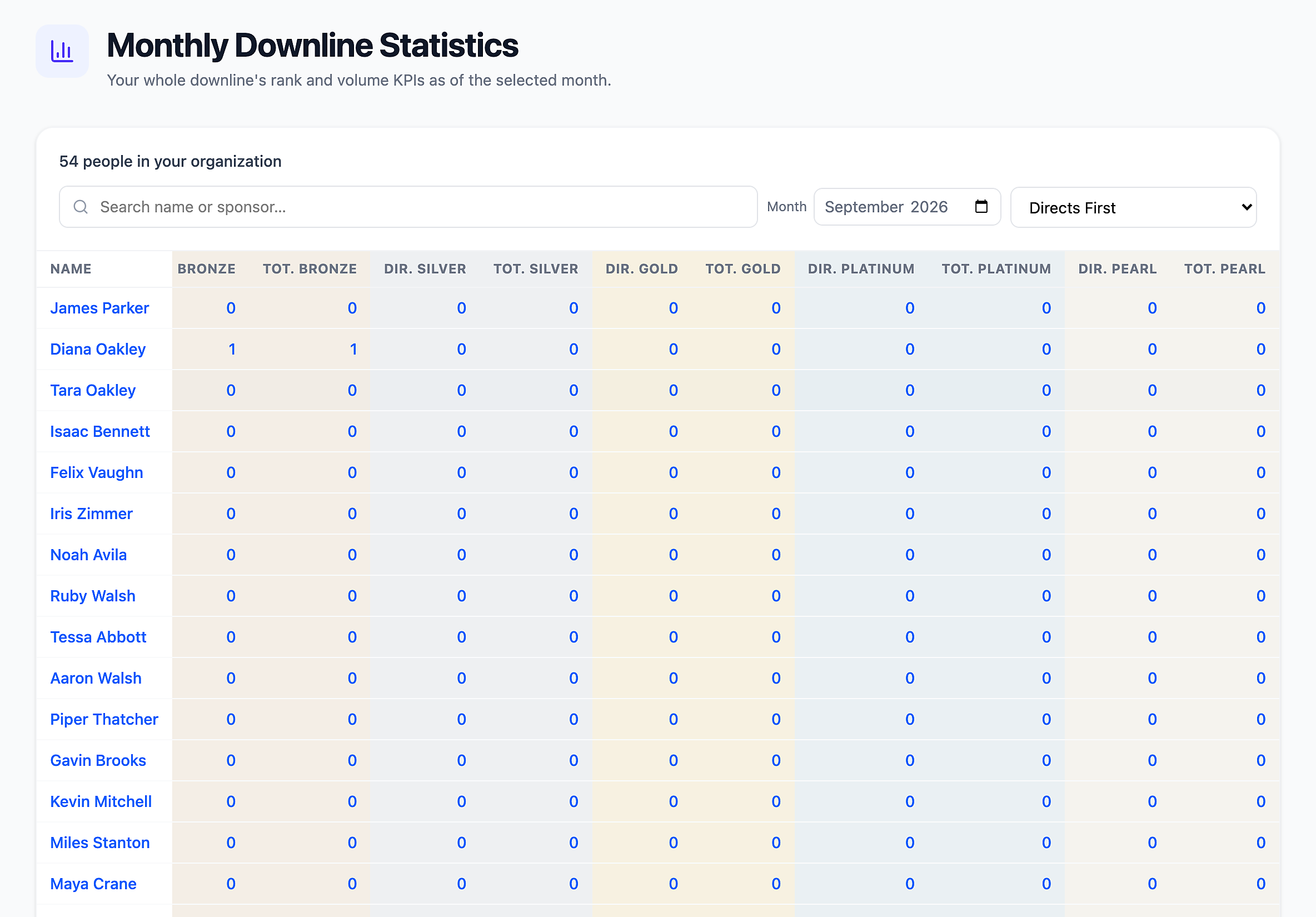
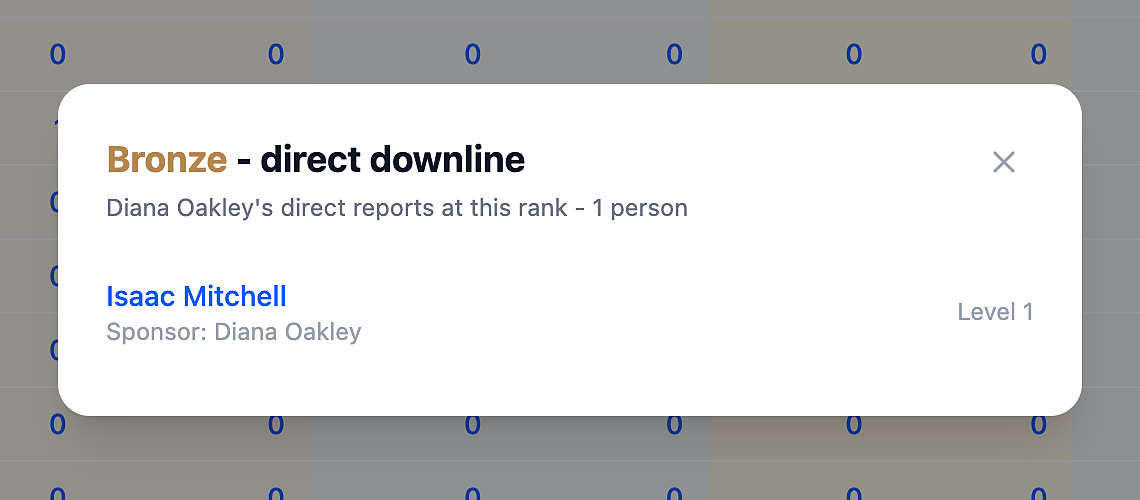
Click any number to see exactly who those people are. It is a quick way to see who on your team is developing leaders of their own.
Upline Helpline
The Upline Helpline is a private place to ask for help. When you post, your question goes up to your upline: everyone above you, and no one else. Your feed shows the requests coming from your own team, so you can support the people who look to you. Answer a question once, and everyone on your team can learn from it.
Click any post to read it and reply in the Comments. You can add images, videos, or links to a comment, too.
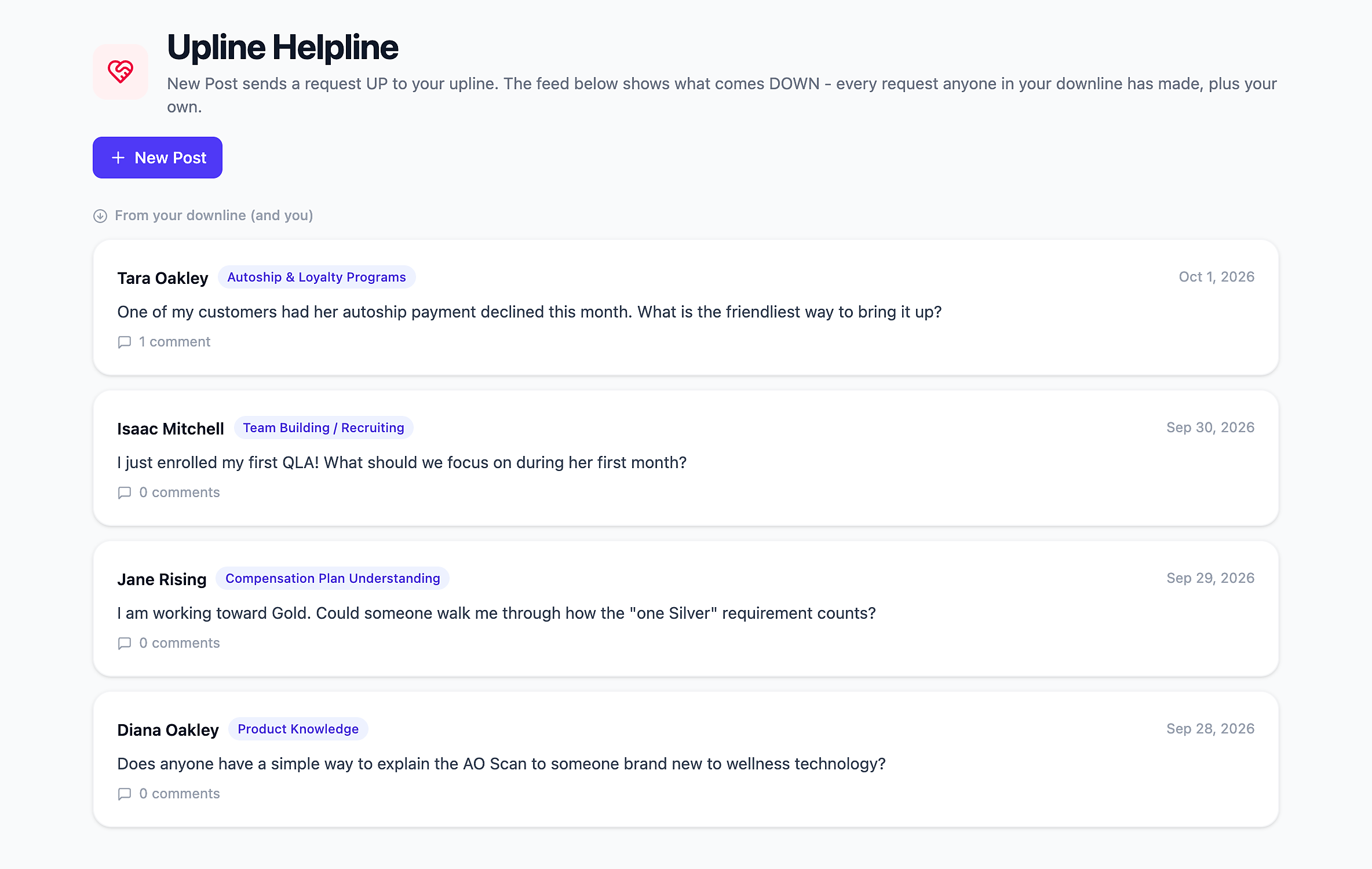
Click New Post to ask your own question. Choose a topic, such as Team Building / Recruiting, Product Knowledge, Customer Retention, Compensation Plan Understanding, Subscription & Loyalty Programs, or Rank Advancement Strategy; describe what you need, and attach images, videos, or links if they help.
Preferences
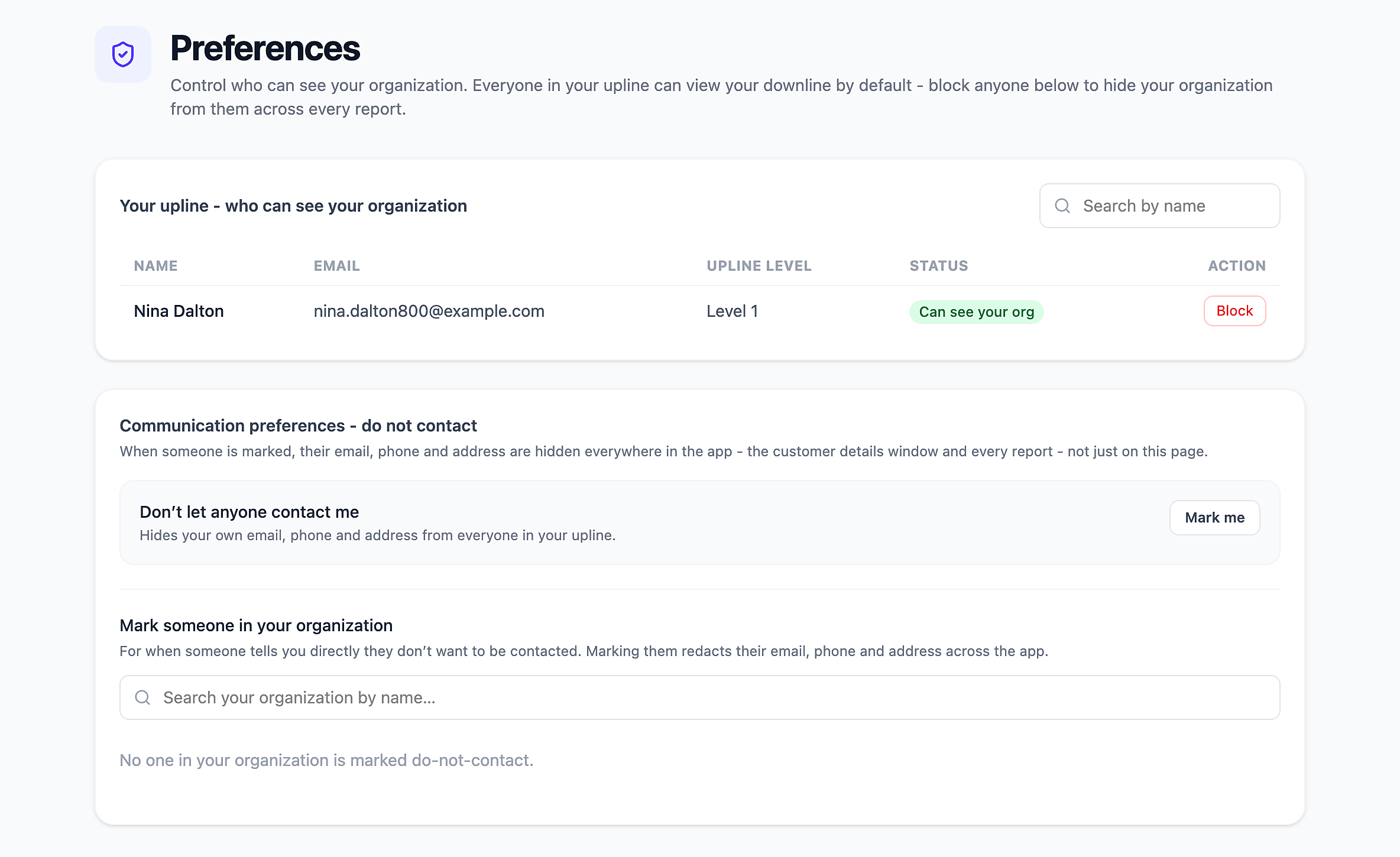
Your upline - who can see your organization: Everyone in your upline can see your downline by default. Here you can see exactly who that is and Block anyone you choose, with an optional reason.
Communication preferences - do not contact: Click Mark me to hide your own email, phone and address from your upline. If someone on your team tells you they would rather not be contacted, search for them and mark them do-not-contact. Their contact details are then hidden everywhere in QLA Tools.
A Few More Details
Choose your light mode: Click the sun icon in the top-right corner of any page to change to bright or dark mode.
Phone usage: QLA Tools works on mobile, so you can check your Dashboard or Progress Report between appointments.
Share your thoughts. Every page has a Useful? prompt in the bottom-right corner. Your feedback goes directly to our Solex development team and helps with future updates and improvements.
Ideas for Putting Each Tool to Work
Knowing where everything is becomes more valuable once you know what to do with it. Here are a few ways each part of the QLA Tools Hub can support your team and your growth. Use what works for you and your business.
Dashboard. When a new name appears in Recently Enrolled, mark it for review with a note such as "Welcome call this week." A personal welcome in the first few days sets the tone for everything that follows. The First Enrollee Table deserves the same attention: enrolling a first team member is a milestone worth celebrating.
Lead Generation Tracker. Keep everyone you share Solex with in one place, and log each conversation as an interaction event. Setting a Schedule Follow-Up date before you close the window adds the next step to your Review List.
Enrollments per month. At the end of each month, click that month's bar. Some of those people were welcomed by members of your team rather than by you. Recognizing every new enrollment, whoever sponsored it, builds a community where growth feels shared.
PV qualification rate. Around the middle of the month, click today on the chart and filter to Not qualifying. These are the directs who are not yet counting toward your rank, and a thoughtful check-in helps both of you. Watching this chart rise through the month is one of the most satisfying views in the platform.
Rank distribution: Highest Ever. Compare the Current chart with the Highest Ever chart. People who have reached a rank before already understand what it takes, and they are often the quickest to return. That is a natural place to focus your business and efforts.
Visual Tree: Highest Rank view. This view can become your plan for your own next rank. Look at the directs marked Former Rank and consider who is closest to returning to their peak, then open their branch to see who on their team can help them get there.
Progress Report. Before a training or a business building conversation, open that leader's card and click See QLAs Not Yet Qualified. In two clicks, you know where they stand and what to talk about. Your own card at the top shows exactly what remains between you and your next rank.
Active Subscriptions. The default sort places declined payments first. A declined payment is usually just an expired card, and a quick, kind heads-up from the sponsor keeps the customer's loyalty streak intact. If the row is a few levels down, let their sponsor know.
Cancelled Subscriptions. A check-in means the most while the cancellation is still recent. The report shows each person's sponsor, so the right person can reach out.
Loyalty Coupon Usage Report. Early each month, sort by Not Used First. A 30% off coupon that expires unused is a reward someone earned and never enjoyed, and a gentle reminder is an easy gift to give.
Coupon Progress Tracker. Anyone at 2 of 3 is one order away from a reward. That is good news worth sharing.
Monthly Downline Statistics. Click the rank counts to see who is developing leaders of their own. These are the people shaping the next generation of your team.
Upline Helpline. Answering a question here, rather than in a private message, means everyone on your team can learn from it. When you have a question of your own, post it: your upline sees it, and no one else.
Getting Started
The best way to get to know the QLA Tools Hub is to jump right in. Log in, open your Dashboard, and click a name that catches your eye. One page leads to the next, and before long you will know your team better than ever and have a clear sense of how to support each person.
This is version 1.0, and there is more to come. If you have an idea or something is not working the way you expected, the small Useful? prompt on each page is the easiest way to let us know. We read every note, and your feedback helps shape what we build next.
Your business is built on relationships, and the QLA Tools Hub is here to help you care for them. We are excited to share it with you, and we cannot wait to see what you and your team do with it.